How to Select and Move All Apps at Once on iPhone?
Have you ever looked at your iPhone Home Screen and felt a little overwhelmed by the clutter? We have all been there. You download a new game, then a productivity tool, and before you know it, your apps are scattered across five different pages with no rhyme or reason.
Deciding to organize your iPhone is a great idea, but the process can feel painful. If you are still dragging and dropping apps one by one, you are doing it the hard way. It is tedious, time-consuming, and frankly, a little frustrating.
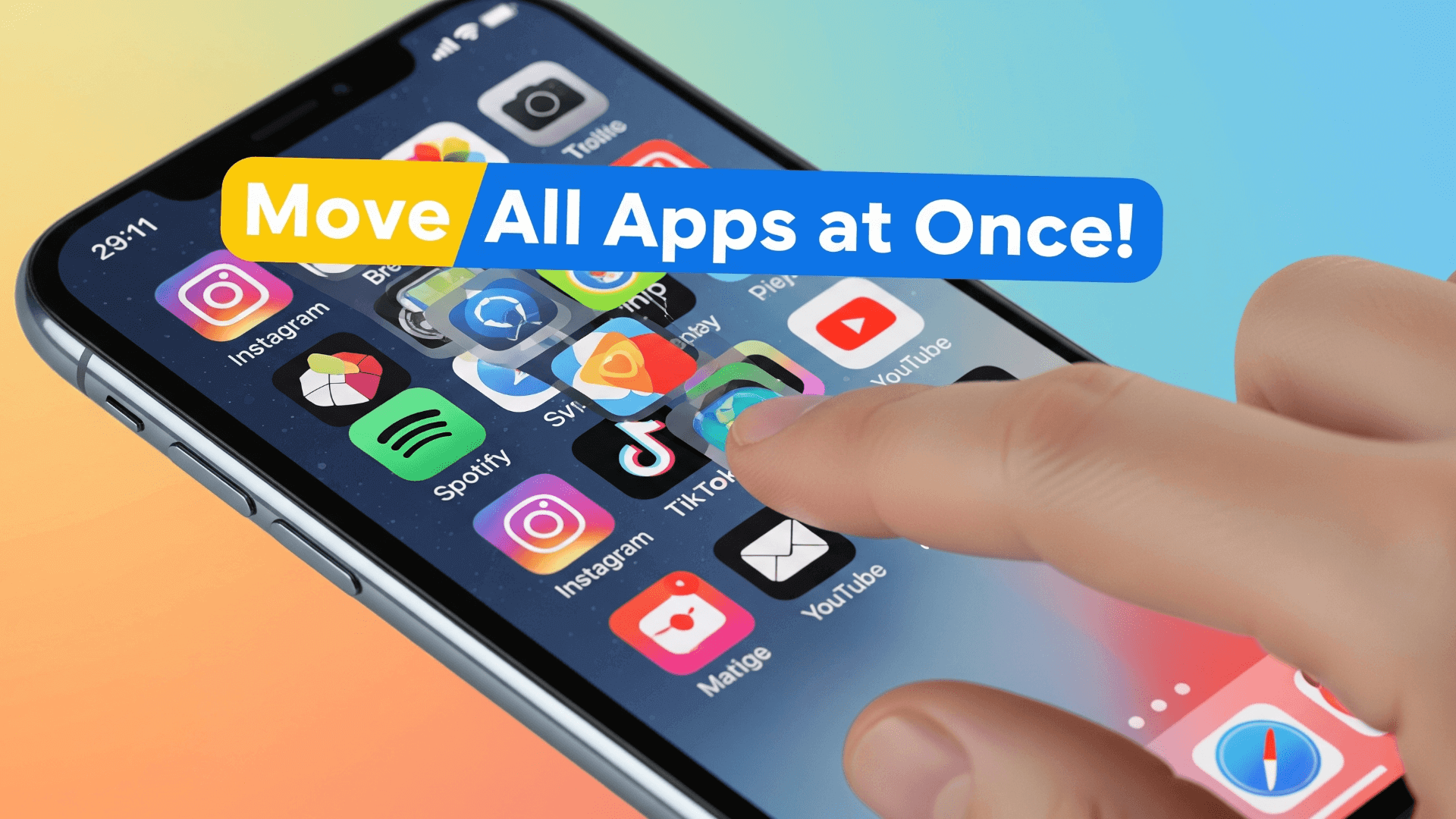
But here is the good news: You don’t have to do it alone. Apple has hidden a brilliant “multi-select” feature inside iOS that allows you to group apps together and move them in bulk. Whether you want to move a handful of apps to a new page or dump them all into a folder, this trick will save you hours of tapping and dragging.
In this guide, we will walk you through exactly how to select and move multiple apps at once on your iPhone, making your Home Screen cleanup a breeze.
The Secret iOS Trick: “App Stacking“
Many iPhone users—even those who have had their devices for years—are unaware that they can stack apps to move them. This feature was introduced in iOS 11, but because there is no on-screen button for it, it remains a hidden gem.
This method requires two hands (or at least two fingers), so get your thumbs ready!
Step-by-Step Guide to Moving Multiple Apps
Follow these simple steps to master the art of bulk app movement:
1. Enter “Jiggle Mode“
First, navigate to the Home Screen page where your apps are located.
-
Tap and hold (long press) on any empty space on your wallpaper, or tap and hold a specific app.
-
Wait until the icons start to shake or “jiggle“. You will see minus signs (—) appear in the corners of the apps. You are now in Edit Mode.
2. Select Your “Anchor” App
Decide which group of apps you want to move.
-
Place one finger on the first app you want to move.
-
Start dragging it slightly so it moves away from its original spot.
-
Crucial Step: Do not lift this finger. Keep holding this app. This is your “Anchor” app.
3. Tap to Collect Others
While still holding the first app with one finger, use a second finger (from your other hand) to tap the other apps you want to move.
-
As you tap other apps, you will see them fly over and stack underneath your Anchor app.
-
A blue badge will appear on the stack with a number indic ating how many apps you have selected (e.g., “3
4. Move and Drop
Once you have gathered all the apps you want into this stack, you can move them anywhere.
-
Drag the stack to a different page by swiping to the edge of the screen.
-
You can also drag the stack directly on top of a folder to dump them all in at once.
-
Once you are at the desired location, simply lift your finger. All the apps will flow out of the stack and arrange themselves on the new screen.
See it in Action:
You can watch our YouTube video guide to visually learn the steps easily .
Why You Should Organize Your Home Screen?
Now that you know how to move them, why should you bother? Organizing your apps in bulk isn’t just about aesthetics; it is about efficiency.
1. Boost Productivity
When you group similar apps together (like Social Media, Finance, or Work), your muscle memory improves. You stop scrolling aimlessly looking for that one specific icon. Moving apps in batches allows you to quickly set up a “Productivity Page” where all your work tools live.
2. Declutter Your Mind
A messy digital space can lead to a cluttered mind. By using the multi-select tool, you can quickly move rarely used apps to the last page of your Home Screen, or dump them into a folder, leaving your main screen clean and minimalist.
3. Utilize the App Library
If you want to move apps off the screen entirely without deleting them, use the bulk select trick to drag them to a page you intend to hide, or simply remove them from the Home Screen so they only exist in your App Library.
Troubleshooting: Common Mistakes
If you are trying this for the first time, it might feel a little tricky. Here are common reasons why it might not work:
-
Lifting the Anchor Finger: The most common mistake is lifting the first finger before tapping the other apps. Remember, the first finger must stay on the screen the entire time until you are ready to drop the apps.
-
Tapping Too Long: When selecting the additional apps with your second finger, just use a quick tap. If you hold them too long, the iPhone might think you are trying to open a menu.
-
Entering Folders Accidentally: If you drag your stack over a folder and hover too long, the iPhone will try to put the apps inside. If this isn’t your goal, just move your finger away from the folder quickly.
Conclusion
Organizing your iPhone doesn’t have to be a chore. With the “App Stacking” trick, you can transform your Home Screen from chaotic to curated in a matter of seconds. No more dragging icons one by one across five different pages!
Next time you download a bunch of new apps, remember to use two fingers: hold one, tap the others, and move them all at once. It is one of those small iOS features that makes a massive difference in your daily phone usage.
Happy organizing!
Also checkout: How to Activate Auto Apps Updates on AppStore on iPhone?


