Is your Chrome browser feeling sluggish, or are you concerned about your digital privacy? Learning how to delete your Chrome history is one of the simplest and most effective ways to tidy up your browser, protect sensitive information, and maintain your online privacy. Whether you’re sharing a computer, troubleshooting issues, or just performing routine digital cleanup, [&hellip
How to Reset Spotify Password?

Whether you’ve simply forgotten your password or want to change it for security, regaining access to your Spotify account is a straightforward process. This guide will walk you through every step, from the standard reset procedure to troubleshooting common issues. Forgot Your Password? How to Reset It? If you can’t remember your password, you’ll need [&hellip
Mastering YouTube Comment: A Complete Guide to Posting and Pinning
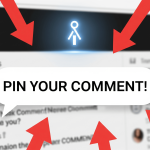
Have you ever watched a YouTube video and wanted to join the conversation, or as a creator, wished to highlight an amazing viewer comment? Understanding how to comment and use features like pinning is essential for anyone looking to engage on the world’s largest video platform. This guide will walk you through the simple steps and explain [&hellip
How to Easily Check Muted Accounts on Instagram?

Have you ever wondered, “Who did I mute on Instagram?” You’re not alone. The mute feature is a perfect tool for quietly curating your feed without unfollowing people, but it’s easy to forget who’s on your list. The good news is that Instagram makes it simple to view and manage all the accounts you’ve silenced. [&hellip
3 Easy Ways to Find Email on Spotify
Have you ever been locked out of your Spotify account because you couldn’t remember which email address you used to sign up? You’re not alone. This frustrating scenario is more common than you might think, leaving many music lovers unable to access their carefully curated playlists and personalized recommendations. Whether you’re trying to reclaim your [&hellip
Revamp Your Spotify Security: Password Change Guide

In today’s digital age, securing your online accounts is more important than ever, and your Spotify account is no exception. Whether you’ve noticed suspicious activity, shared your password with someone temporarily, or simply want to maintain good security hygiene, knowing how to change your Spotify password is essential. This comprehensive guide will walk you through every method to [&hellip
Revitalize Your WhatsApp Profile with a New WhatsApp About
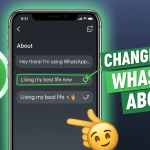
Have you ever wondered how to quickly let all your WhatsApp contacts know you’re busy, traveling, or simply available for a chat? Your WhatsApp About section is the perfect tool for this, and it recently received its biggest update in years. This powerful little text snippet acts like a digital status update, letting friends and family know what’s [&hellip
Silence Your WhatsApp by Disabling Receipts Notifications

Do you feel that subtle pressure to respond immediately when you see those blue checkmarks appear on WhatsApp? You’re not alone. Many users find themselves rushed to reply when senders know they’ve read messages. The good news is that you can take control of your messaging experience by learning how to disable WhatsApp read receipts. This comprehensive guide [&hellip
Elevate Your iPhone Experience with Better Increase Contrast

Are you struggling to read text or distinguish icons on your iPhone? Increasing the contrast on your display can make a significant difference. This guide will walk you through the simple steps to boost contrast and improve clarity on your iPhone, making everything on your screen easier to see when you increase contrast. You can customize [&hellip
Change Your iPhone Region for a Better Experience

Changing your iPhone’s region is a common need—whether you’ve moved countries, want to access region-specific apps, or hope to find better subscription prices. However, the process isn’t always straightforward and comes with important considerations most guides don’t mention. This comprehensive guide walks through everything you need to know about changing your iPhone region, including two different [&hellip